Questions

[5 marks Questions]

🎯

Test yourself on this topic

5 questions · timed · auto-graded

Question 15 Marks
How to find and replace the text?
Answer
It is the act of finding some text and replacing it with an alternative text.
The Find and Replace option helps you to search a particular letter, word, phrase or sentence in your document and then replace it, if you want. Steps to use the find and replace feature in a document are as follows:
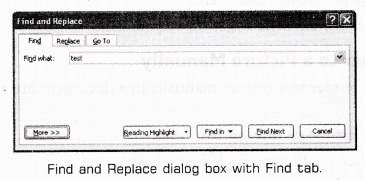
  • Step 1: Click Home tab —> click on Find or Replace option in the Editing group. A Find and Replace dialog box will appear.
  • Step 2: In the Find what: box, type the text that you want to find.
Image
or
In the Replace with: box, type the text that you want to replace with the original text.
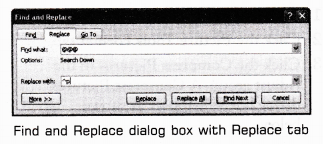
Image
  • Step 3: Click the Find Next button.
  • Step 4: Click the Replace button or Replace All button. Keep clicking Replace button until the text in entire document has been searched and replaced.
  • Step 5: Click Cancel button.
View full question & answer
Question 25 Marks
Write the steps to compress a picture.
Answer
  • Steps to compress a picture in a document are as follows:
    • Step 1: Select the picture.
    • Step 2: Click the Picture Tools Format tab.
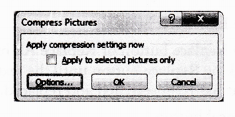
    • Step 3: Click the Compress Pictures in the Adjust group. A Compress Pictures dialog box will appear as shown below:
Image
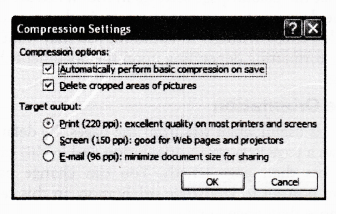
Step 4: Click the Options… button to access the Compression Settings dialog box as shown below:Image
  • Step 5: Choose any of the Target output: as per the requirement.
  • Step 6: Click on the check box(s) under the Compression options: as per the requirement.
  • Step 7: Click OK button in the Compression Settings dialog box.
View full question & answer
Question 35 Marks
Explain how text wrapped around a picture from picture tools.
Answer
  • Wrap Text Around a Picture
    Steps to wrap text around a picture in a document are as follows:
    • Step 1: Select the picture.
    • Step 2: Select the Picture Tools Format tab. (This tab appears only aiter insertion of a picture).
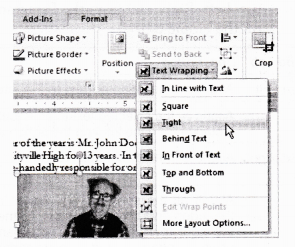
    • Step 3: Click the Text Wrapping in the Arrange group.
Image
  • Step 4: Select any one option from the drop down list. In this example, we will select Tight.
  • Step 5: Move the picture around to see how the text wraps for each setting.
  • Step 6: The Position button has pre-defined text wrapping settings. The Position button is placed to the left of the Text Wrapping button.
  • Step 7: Click the Position button and a drop down list of Text Wrapping options will appear. Move your cursor over the various text wrapping styles. A live preview of text wrapping will appear in the document.
    If you cannot get your text wrapped the way you wish, select More Layout Options… from the Position menu. You can make more precise changes from the Advanced Layout dialog box that appears.
View full question & answer
Question 45 Marks
Explain the different text alignments.
Answer
The text layout within a paragraph with respect to document margins is called text alignment.
Steps to change the text alignment in a document are as follows:
  • Step 1: Select the text that you want to modify
Image
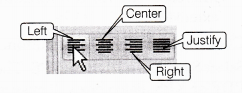
  • Step 2: Select any one of the four alignment options (i.e. Left, Right etc) from the Paragraph group on the Home tab.
    Command TabDescription
    Align Text LeftAligns all the selected text to the left margin.
    CenterAligns all the selected text to an equal distance from the left and the right margins.
    Align Text RightAligns all the selected text to the right margin.
    JustifyAligns all the selected text equal from both the sides and lines up equally to the left and the right margins. Traditionally many books, news letters and newspapers use full-justification.
View full question & answer
Question 55 Marks
Explain different types of tabs available in MS-Word 2007.
Answer
Tabs
These are similar to the menu system of MS-Word 2003. Instead of having drop down menus, MS-Word 2007 creates a Ribbon system, where buttons and commands are grouped under the tabs. Some groups include a dialog launcher button in their lower right corner to bring up the additional options.
Different types of tabs are as follows:
  • Home tab is used to change font, styles, setting of paragraph etc.
  • Insert tab is used to insert page breaks, tables, illustrations, links, header and footer, text and symbols etc.
  • Page Layout tab is used to change themes of a page, margin of a page, orientation of a page, insert a page border, column, format paragraph etc.
  • References tab is used to insert table of contents, foot notes, citation and bibliography, captions, index, mark entry for index etc.
  • Mailings tab is used to create envelopes, labels, start mail merge, write and insert fields and preview results etc.
  • Review tab is used for proofing, comments, tracking, comparing the documents etc.
  • View tab is used to change the outline or draft views, display the ruler or document map, zoom, switch windows etc.
View full question & answer
[5 marks Questions] - Information Technology STD 9 Questions - Vidyadip