Questions

[5 marks Questions]

🎯

Test yourself on this topic

6 questions · timed · auto-graded

Question 15 Marks
Describe the concept of tiling and cascading windows.
Answer
Tiling and Cascading Windows
Sometimes, moving and resizing multiple windows can create confusion. To keep better track of multiple windows, try cascading or tiling the windows. In cascading, windows are layered on the top of each other.
Steps to Cascade the Windows Across the Screen
  • Step 1: Right click on the taskbar.
  • Step 2: Click Cascade windows.
In tiling, windows are next to each other. Windows can be tiled horizontally or vertically. If windows are tiled horizontally, they appear one above the another. If windows are tiled vertically, they appear side-by-side.
Steps to Tile the Windows Across the Screen
  • Step 1: Right click on the taskbar.
  • Step 2: Click Show windows stacked (for tiling horizontally) or Show windows side-by-side (for tiling vertically).
View full question & answer
Question 25 Marks
Describe the various parts of the folder window.
Answer
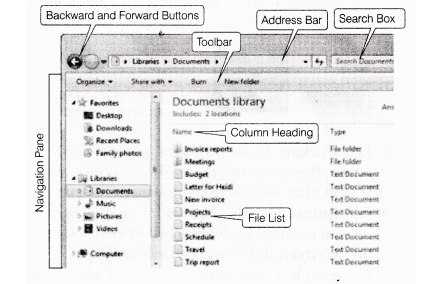
It is a location where you can store your files. You can create any number of folders and even you can store a folder into other folders (sub-folders). Windows use various folders to store and manage files. Various parts of the Windows folder are as follows:Image
  1. Navigation Pane Offers to access libraries, folder, saved searches and even the entire hard disk, pane, contents etc.
  2. Backward and Forward Buttons Used to navigate between previously used and current folders.
  3. Toolbar/Command Bar Used to perform some files related common tasks.
  4. Address Bar Used to navigate directly to a different location from one folder/directory to another.
  5. Search Box Type a word or a phrase in the search box to look for an item in the current folder or library.
  6. Column Heading Use the column heading to change how the files in the file list are organised.
  7. File List This is the list of contents of the current folder or library.
View full question & answer
Question 35 Marks
Describe the basic operations of mouse button.
Answer
Some basic mouse operations are as follows:
  • Pointing Pointing to an item on the screen means moving a pointer to a certain location. When you point to some object, a small box often appears, that describes the item.
  • Left clicking To click an item ,point to the item on the Screen, then press and release the left button.Left clicking is most often used to select an item or to open a menu
  • Left Button-Double Clicking It is used to open the items on your desktop. To double click an item point to the item on the screen and then click twice quickly.
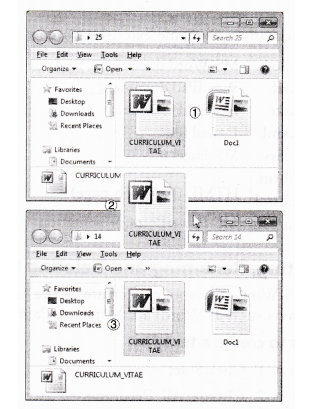
  • Dragging It is used to move files(or folders) to different locations and to move window (or icons) around your screen. to drag an object, point to the object on the screen, press and hold the left button, move the object to a new location and then release the button.
Image
Right Clicking It is usually used to display a list of operations that can be performed with the associated item. Right click an item, point to the item that you want perform and then, click the left button
View full question & answer
Question 45 Marks
What are shortcuts? Explain the steps to create shortcut.
Answer
Steps to Create a Shortcut
    • Step 1: Right click on the desktop or the area where you want to place the shortcut. In the right click menu, point to New and then, select Shortcut.
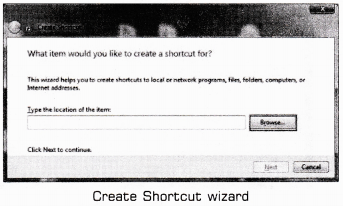
    • Step 2: The Create Shortcut wizard will open as shown below. You need to select the path to the program, click on the Browse button to begin.
Image
  • Step 3: Navigate to the folder where the program is located and select it, click the OK button.
  • Step 4: Press the Next button to continue.
  • Step 5: You need to enter the name of the shortcut in the ‘Type a name for this shortcut:’ field and finally, click Finish button.
View full question & answer
Question 55 Marks
What do you mean by desktop? Explain the Components of Windows 7 desktop.
Answer
When a computer is booted up and ready to use, then the screen we see is called the Desktop.
Components of Windows 7 Desktop
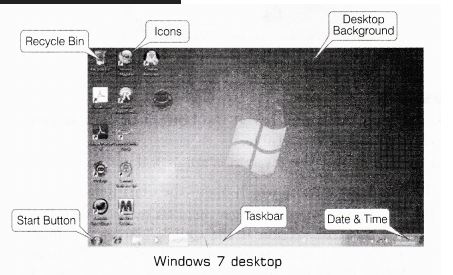
Basic components of Windows 7 Desktop screen are as follows:
    1. Start Button It is a tool by which you can open menus, start applications, files and settings.
      Taskbar It is located at the bottom of the screen which contains the Start button, shortcuts to applications, date, time etc.
    2. Date and Time Settings On the right side of the taskbar, you will see date and time option, which is used to set date and time.
Image
  1. Desktop Background It is an image used as background of a GUI on a computer screen. It is also called wallpaper.
  2. Recycle Bin It is a container which contains deleted files, folders etc until, the ‘ are finally removed from the hard disk. If you want to restore the deleted files/folders, you have to go to the recycle bin (by left clicking it twice) right click on the document and choose Restore from the given options. After doing this, the desired document will be restored on its original position.
  3. Computer This folder is a source to retrieve all the information and resources attached to the system. It allows the user to explore the content of his/her computer drives as well as manage the computer files.
  4. Icons (or Graphical Pictures) It is a small graphical representation of a program applications or tiles. When user click on icons, the associated program opens (run). Icons are the main part of GUI in order to help a user to operate a computer system or any digital device in an easy way. The three types of icons are-the application icon, the shortcut icon and the document icon.
  5. Aero It is a visual desktop experience, which provides an easy way to access desktop.
View full question & answer
Question 65 Marks
Explain Graphical User Interface (GUI) with its features.
Answer
Graphical User Interface (GUI)
It is a visual environment for representing programs, files and options with graphical images such as icons, menus and dialog boxes on the screen. The user could select and activate/deactivate these elements by pointing and clicking with a mouse or often with the keyboard.
Features of GUI:
  • A pointing device allows the user to identify and select the necessary commands by moving the cursor to a certain location on the screen, e.g. Mouse, joystick etc.
  • The object being manipulated remains visible on the screen before the manipulation and after the manipulation.
  • WYSIWYG (What You See Is What You Get) means that a printed document is exactly a copy of what you see on the screen.
  • A GUI provides adequate messages and information from time to time depending upon the application.
  • Quality of reversal is the ability to revert the previous state of action.
  • Icons represent files, folders and other applications.
  • Dialog boxes, sliders, buttons, check boxes allow the user to inform computer, what to do and how to do.
  • Graphical display of the current actions informs the user regarding the current action and a method to interrupt the same action by using graphical animation.
View full question & answer
[5 marks Questions] - Information Technology STD 9 Questions - Vidyadip